Meta description: Zendesk costs climbing? Use your workspace admin console to audit seats, tighten access, and cut wasted licenses before renewal.
Your finance lead pings you a few weeks before renewal and asks a fair question: are you paying for Zendesk seats nobody really uses?
You open the Admin Center and realize the answer isn't sitting in one obvious report. You know where to add an agent, reset access, and tweak a trigger. But when the conversation shifts from support operations to spend, the workspace admin console starts to feel less like a control panel and more like a maze.
That gap is common. Day-to-day admin work trains you to solve immediate problems. Add a user. Fix a channel. Update a form. Renewal prep is different. You need a top-down view of roles, activity, permissions, and billing impact. Zendesk gives you pieces of that picture, but not always in a way that helps you answer a CFO in five minutes.
For mid-market teams, that hurts more than it used to. Zendesk pricing adds up fast: Suite Team is $55, Growth is $89, Professional is $115, and Enterprise starts at $169+ per agent per month on annual billing. A few idle seats can turn into a budget line item worth attention.
Your Zendesk Bill Is High But The Admin Center Is A Maze
A familiar scenario looks like this. Someone asked for quick hiring support six months ago, so you added agents fast. Another manager wanted backup coverage, so you gave a few leads higher access. A contractor came in for a migration project and never got cleaned up after the handoff.
Now renewal is close, and nobody is fully sure who still needs a paid seat.
The hard part isn't adding people. It's seeing the whole account clearly enough to make good cleanup decisions. The Zendesk Admin Center is your support team's workspace admin console, but most admins only live in the parts tied to urgent work. They don't spend much time building a repeatable process for seat reviews, role audits, or access cleanup until costs force the issue.
Where teams usually get stuck
Three problems come up over and over:
- Seat visibility is fragmented: user lists, roles, activity, and billing signals live in different places.
- Old decisions linger: temporary access often becomes permanent access.
- Manual audits are slow: exporting data to spreadsheets usually happens late, not continuously.
If you can't explain who each paid seat belongs to and why it still exists, you're not managing licenses. You're inheriting them.
There's a second layer to this. Cost and security are tied together. Over-permissioned admins tend to create messes that nobody owns later. Research on Google Workspace admin roles notes that admin role privilege creep is a primary cause of configuration errors and excessive license sprawl, and that 30-40% of spend can be tied to unmanaged, idle seats in organizations without a clear governance framework (Reco on Google Workspace admin roles).
Zendesk isn't Google Workspace, but the pattern carries over. If too many people can provision, change roles, or leave accounts untouched, waste builds. That's why learning the Admin Center as a budget tool matters just as much as learning it as a support tool.
Mapping The Zendesk Workspace Admin Console
An IT manager usually opens Admin Center for one urgent fix, then gets pulled into three others. A password policy needs attention. A team lead wants a new agent added. Finance asks why the Zendesk invoice climbed again. If you do not have a working map of the console, those requests turn into slow guesswork.
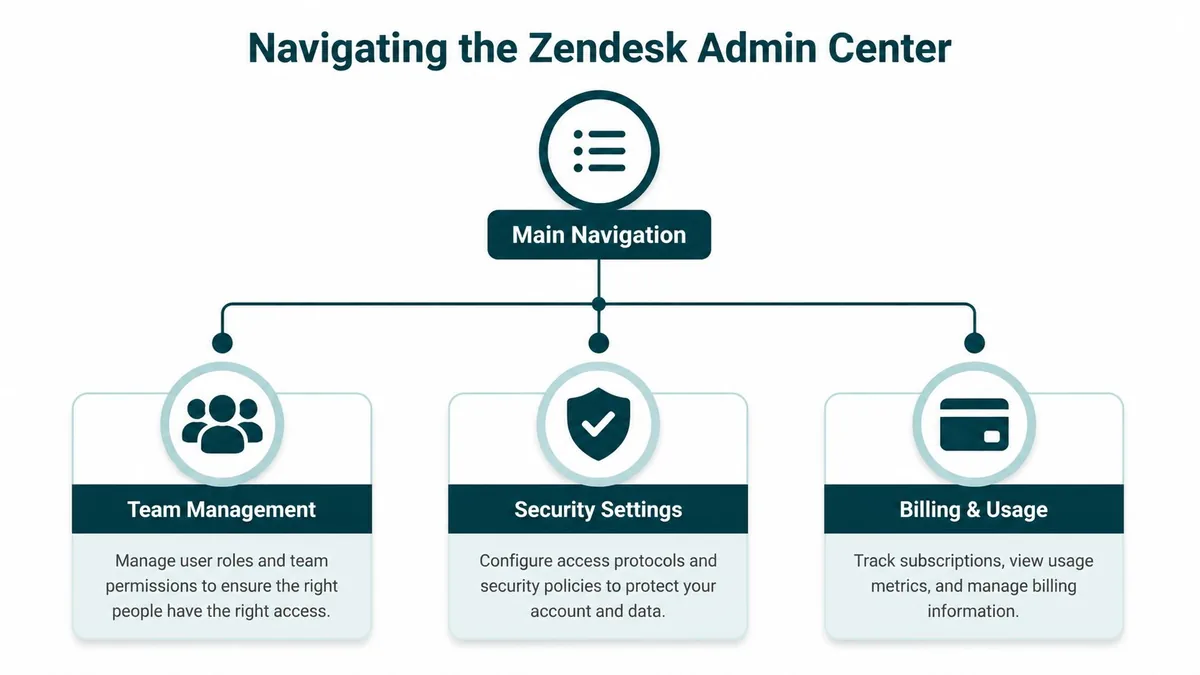
The useful way to read Zendesk Admin Center is by control point, not by menu label. In practice, you are usually answering one of four questions. Who has paid access. Who can change configuration. Which workflows are forcing people to ask for broader permissions. Which account settings could create security or audit problems later.
Four areas that matter most
People management is the cost center. Team members, groups, roles, and permissions are the first places to check when a renewal quote looks off or an access review stalls. If a paid seat exists, there should be a clear owner, a reason for the access level, and a manager who would notice if that person left.
Work definition is where hidden admin mistakes start to get expensive. Triggers, automations, views, ticket fields, forms, and objects control how work moves through support. If those pieces are poorly set up, managers often solve the pain by asking for broader access or extra headcount. That raises spend even though the root problem is process design.
Customer channels shape staffing pressure. Email, web, messaging, voice, and connected apps all affect ticket volume and routing. When a new channel goes live, seat count often grows before anyone checks whether the demand is permanent or whether the workflow could be tightened first.
System controls cover account settings, security, authentication, and audit-related configuration. This area matters because cleanup gets harder after bad access habits settle in. Tight controls reduce accidental admin changes and make seat reviews easier to defend.
Write this down somewhere your team will use. A two-page runbook is enough. If your admins do not already keep one, this guide on what is process documentation is a practical starting point.
A practical way to use it
Use the Admin Center like an index for decisions. Start with the question, then go to the part of the console that controls that outcome.
| Admin question | Start in | Why it matters |
|---|---|---|
| Who still needs a paid seat? | Team members and roles | License cost starts with assigned access |
| Who can change settings? | Roles and permissions | Extra admin rights create avoidable risk and cleanup work |
| Why do agents keep asking for broader rights? | Triggers, views, forms, objects | Weak workflow design often causes permission creep |
| Are our controls tight enough for active users? | Security and authentication | Paid seats should also be properly protected |
For teams tightening access policy, LicenseTrim has a useful primer on rules-based access control that fits how support organizations usually split permissions across admins, leads, and agents.
A good map saves time, but the bigger payoff is better judgment. You stop treating every request as a one-off ticket and start tracing cost and risk back to the setting that created them.
Core Admin Tasks for Security and Team Management
Bad admin habits usually start during routine setup. A rushed user add, a broad role assignment, or a forgotten MFA exception can turn into higher license cost and a messy access review six months later.
In Zendesk Admin Center, the security and team management work that matters most is also the work people tend to rush. That is the practical side of a workspace admin console. It is not just where settings live. It is where you decide who gets a paid seat, who can change your environment, and how much cleanup you create for yourself later.
Add new users with a seat decision, not just an account
Before creating any new agent, answer four operational questions:
- What license level fits the job? Full agent, light agent, or admin access.
- Which groups should receive their tickets? Group sprawl creates routing mistakes and hides ownership.
- What permissions are required on day one? Give the minimum needed to start work.
- Who owns the account after onboarding? A named manager should confirm the user still belongs in that seat.
That last point gets skipped all the time.
If no manager owns the account, the seat often survives role changes, leave, contractor offboarding, and internal transfers. The Admin Center makes it easy to create the user. It does not force good lifecycle discipline, so the admin team has to.
Build custom roles around actual work
Default roles are fast. They also create expensive shortcuts.
Once a Zendesk instance has team leads, temporary staff, QA reviewers, outsourced support, or operations users, broad access starts causing two problems. Security risk goes up because more people can change settings. Cost control gets weaker because role sprawl makes it harder to defend who really needs a full paid seat.
Zendesk admins should review role design the same way they review queues or automations. Start with the task, then match the permission. If someone only needs to review macros, audit content, or monitor workload, they probably do not need rights that let them manage users or alter core settings.
Google's guidance on Google Workspace reports and security monitoring is useful here for the principle, not the product. Audit logs and admin event reviews help catch permission creep before it turns into a security issue or a billing issue.
A related read from DocsBot on securing AI chatbots with team permissions is useful here because the permission design problem is the same across tools. Keep powerful actions with the smallest practical admin group.
Practical rule: If a user does not need to add people, change authentication settings, or touch billing-related configuration, do not put them in a role that allows it.
If you are reviewing access standards across your stack, this checklist of SaaS security best practices for admin teams is a useful companion.
Review sign-in controls with the same discipline as seat reviews
Security settings affect cost control more than many new IT managers expect. An unused account with weak sign-in protection is not only wasted spend. It is also an account nobody has looked at closely enough.
In Zendesk Admin Center, review authentication settings and privileged accounts together. Confirm which admins still need high-level access. Remove temporary exceptions that were granted during migrations or urgent projects. Check whether inactive users are still sitting in roles with meaningful permissions.
A short video walkthrough can help if you're training a new manager on how admin controls typically fit together:
A simple review pass should cover:
- Privileged users: confirm each admin can justify current rights.
- Authentication policy: remove old exceptions and tighten weak sign-in paths.
- Inactive members: flag accounts with low or no recent use for manager confirmation.
- Contractor access: check end dates and whether temporary users still need paid access.
This is the part many general "workspace admin console" guides miss. In Zendesk, security and team management are tied directly to license waste. Every role decision and every access exception has a cost if nobody comes back to clean it up.
How To Find and Eliminate Wasted Zendesk Seats Manually
Manual auditing works. It just doesn't work well when you're busy.
Most admin consoles are built for reactive troubleshooting. You go looking after a problem appears. Research on admin workflows points out that platforms often support things like email log investigation after an issue occurs, but lack proactive alerts for cost waste, which pushes admins into cleanup during budget review instead of continuous monitoring (Inbox Zero on reactive admin workflows).
That pattern will feel familiar in Zendesk.
The manual audit most teams end up doing
You usually start in the team member list. Then you sort or filter by recent sign-in data, export what you can, and move into a spreadsheet because the console alone won't give you the full business answer.
A workable manual process looks like this:
- Pull the user list: export agents and admins so you have a reviewable file.
- Check recency signals: look at last sign-in and any visible activity markers.
- Cross-check with managers: confirm leave status, department moves, and contractors.
- Review role level: look for people sitting in paid seats who may need a lighter role.
- Create an action list: deactivate, downgrade, keep, or investigate.
None of that is hard. The problem is that each step depends on someone remembering context that the console doesn't store neatly. HR knows one piece. Support leadership knows another. IT knows who still has access. Finance cares about renewal count, not the backstory.
Where the manual method breaks down
The weak points show up fast:
| Metric | Manual Audit (Using Admin Console) | Automated Audit (Using a Tool) |
|---|---|---|
| Data collection | Export lists and gather context by hand | Pulls usage data continuously |
| Decision speed | Slows down with spreadsheets and manager follow-up | Flags likely waste faster |
| Rule consistency | Depends on who runs the audit | Applies the same inactivity logic every time |
| Historical context | Limited in a one-off review | Better for ongoing monitoring |
| Error risk | High, especially during renewal crunch | Lower because fewer handoffs |
There's also a role problem hiding in the seat problem. An agent might be technically active enough to avoid obvious removal, but still be in the wrong tier. If you're evaluating seat mix, review when someone should be a light agent instead of a full paid seat. This guide on Zendesk light agents is helpful for that specific decision.
Manual reviews catch obvious waste. They don't create ongoing governance unless someone owns the process and repeats it.
For a one-time cleanup, the spreadsheet route is acceptable. For recurring control, it usually falls apart because the process is reactive, fragmented, and easy to postpone.
Streamlining Governance with an Automated Solution
Quarterly seat reviews usually fail for the same reason. The Admin Center shows the current state, but it does not give IT, support leadership, and finance a shared process for deciding who should keep a paid Zendesk seat.
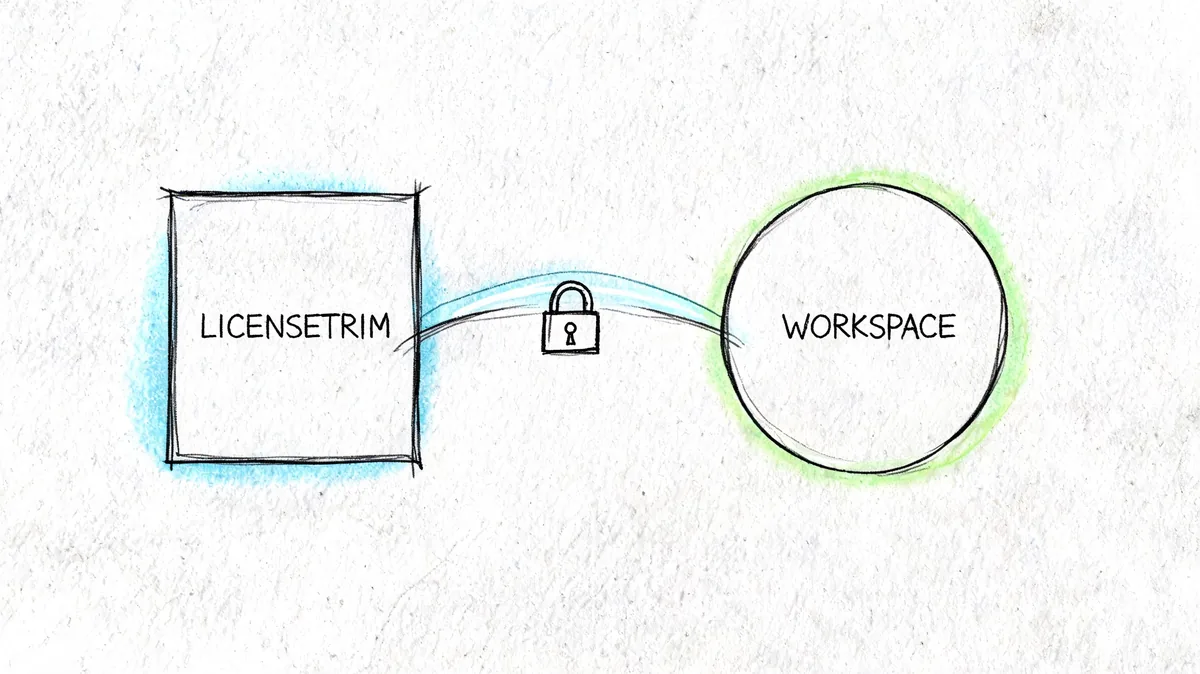
An automation layer helps when the goal is repeatable governance, not a one-time cleanup. For Zendesk admins, that usually means a tool that connects securely, reads the right activity signals, and applies the same inactivity rules every month. It should show recommendations with enough context to act on them. It should not remove licenses automatically and leave support managers sorting out the fallout.
That trade-off matters. Full automation sounds efficient until a manager loses an agent seat during a busy week and IT has to reverse it. In practice, the safer model is read-only analysis plus admin approval.
That's the value of LicenseTrim. It connects to Zendesk through OAuth with read-only access, checks actual usage data, and shows which agent licenses appear inactive and what those seats are costing you. The admin still makes the final call.
Why the output matters more than the dashboard
A polished dashboard is nice. A defensible recommendation is what saves money without creating new problems.
Good governance depends on two questions. Has this person been using Zendesk, and is there any sign they still need access? If a tool helps answer both with consistent rules and recent activity history, admins can remove or downgrade seats with much more confidence.
That is the gap between reporting and governance. Reporting gives you screens to review. Governance gives you a repeatable way to decide, document, and act before renewal pressure forces rushed decisions.
If your team is also looking at repetitive admin work outside Zendesk, Donely has a practical overview of Donely's AI task automation platform that explains where automation fits and where human approval should stay in the loop.
What To Do Before Your Next Zendesk Renewal
A bad renewal usually starts the same way. Finance asks why the Zendesk bill went up, support says every seat is needed, and nobody has a clean list of who still uses Admin Center, who owns each paid license, or which role changes created extra cost.
The fix is not complicated, but it does take a pass through the Admin Center before procurement gets involved. Do the review while there is still time to ask managers questions, downgrade the right accounts, and document why each paid seat stays.
Your pre-renewal checklist
- Audit admin rights: confirm who can add users, change roles, and manage account settings.
- Review paid seats: identify inactive agents, duplicated access, and users sitting in the wrong license type.
- Check security posture: make sure active accounts still meet your sign-in and access standards.
- Project near-term demand: buy for realistic staffing, not worst-case hiring plans.
- Document ownership: assign a manager to each retained paid seat.
The Zendesk Admin Center matters more than any generic "workspace admin console" advice. Renewal cost usually comes down to a few plain questions. Which agents are active, which admins still need expanded rights, which teams are overlicensed, and who will approve removals if usage is low.
A general admin guide will tell you to review settings. In Zendesk, the practical version is sharper. Check People, Roles, Groups, and security settings together. A seat review without ownership turns into guesswork. A security review without role cleanup leaves broad access in place. A renewal review without manager signoff creates pushback later.
What works and what doesn't
A few habits hold up well in real environments.
| Works | Doesn't work |
|---|---|
| Starting the review before renewal season | Waiting for finance to ask for justification |
| Requiring a manager owner for each paid seat | Keeping old seats because nobody wants to decide |
| Narrow custom roles | Broad admin rights for convenience |
| Running smaller reviews during the year | One large cleanup right before renewal |
Keep it operational. Zendesk seat governance is routine admin work tied directly to cost, security, and support coverage.
If you want a faster way to audit Zendesk seats before renewal, LicenseTrim connects with read-only OAuth access, flags inactive agents, and shows where you're paying for licenses nobody is using.