A user access review is a periodic check that everyone with a login still needs one. For Zendesk it comes down to a simple question: does every paid agent seat belong to someone who is actually working tickets? Run the review well and you stop paying for seats nobody uses, and you close off accounts an attacker could walk through.
This guide covers how to do that review by hand, what the numbers usually look like, and where the manual approach starts to break down.
Your Zendesk bill is bigger than your active team
You have seen the invoice. On Suite Professional you pay $115 per agent per month, billed annually, and that line goes up every renewal. The question worth asking is how many of those agents logged in this month.
In most accounts I have looked at, a real slice of the bill goes to people who are not there anymore. Support teams call them ghost agents. They stick around long after the person stopped needing the seat.
Where inactive licenses come from
They pile up in predictable ways as the team changes:
- Former employees whose Zendesk account never got cleaned up during offboarding.
- Contractors and freelancers who wrapped up a project weeks or months ago.
- People who changed roles and no longer touch the support queue.
- Test accounts someone spun up for a one-off and forgot about.
None of this is only about money. Every one of these accounts is a live login into a system full of customer data, so it is a security problem as much as a billing one.
What inaction actually costs
The math is quick and a little painful. Ten inactive agents on Suite Professional cost you $13,800 a year. On a bigger team the number runs into the tens of thousands. That is budget going out the door for seats that produce nothing, money you could spend on hiring, training, or tools people actually use. Doing this review on a schedule is a core part of managing your SaaS subscriptions instead of letting them manage you.
The security risk of stale accounts
An unused Zendesk seat is a liability before it is a line item. Old accounts, especially the ones left behind by former staff and contractors, quietly widen your attack surface. Forgotten credentials are easy targets. In a credential stuffing attack, someone takes passwords leaked from other breaches and replays them against your login page. If a former agent reused a password that later showed up in a dump, their old Zendesk account is an open door.
A dormant account is step one. If the credentials leak, it becomes a way in, and from there a support tool full of customer data is a real breach.
This is not a rare edge case. In Verizon's 2025 Data Breach Investigations Report, credential abuse was the single most common way attackers got their initial foothold, behind about 22% of breaches. A Zendesk instance holds customer names, contact details, order history, and whatever people paste into tickets, so one compromised agent account can turn into a serious incident fast.
Skipping the access review is not just a budgeting miss. It is a security control you are choosing not to run.
Compliance and audits
Stale accounts also make audits harder than they need to be. When an auditor for SOC 2 or ISO 27001 shows up, access control is one of the first things they poke at. They want you to answer three questions with a straight face:
- Who can see our customer data?
- Is each person's access still right for their current job?
- How fast do you pull access when someone leaves?
If you cannot show a documented history of regular reviews, you are inviting findings that can hold up contracts and dent your reputation. Weak offboarding is a classic red flag, and our guide to onboarding and offboarding covers how to tighten it.
The everyday drag
There is a smaller, daily cost too. When your team list is cluttered with people who left months ago, routine work gets slower. Assigning a ticket, building a report, or sorting group permissions means scrolling past names that should not be there, and that is how a sensitive ticket ends up with the wrong person. A clean list is simply easier to run.
How to run a manual review in Zendesk
A manual review is the most direct way to get your Zendesk costs under control. It is some spreadsheet work plus a few emails to managers, and it gets the job done. You decide what inactive means, pull the data, confirm with managers, then downgrade the seats.
Step 1: decide what inactive means
Pick your definition before you pull any data, or you will end up arguing about edge cases later. Most teams combine a couple of signals:
- Last sign-in. Someone who has not logged in for 60 or 90 days is worth a look.
- Ticket activity. This usually tells you more than logins. Check the last time the person solved a ticket, left a comment, or was assigned one. Plenty of agents log in out of habit and never touch the queue.
- Role changes. If someone moved from support to marketing three months ago, they probably do not need a full agent seat.
For most teams, 90 days with no ticket activity is a defensible line. Write your choice down before you start.
Step 2: export your agent list
In the Zendesk Admin Center, go to People, then Team, then Team members. Open the Actions menu and choose Export team members. Zendesk emails you a link to a CSV of every team member.
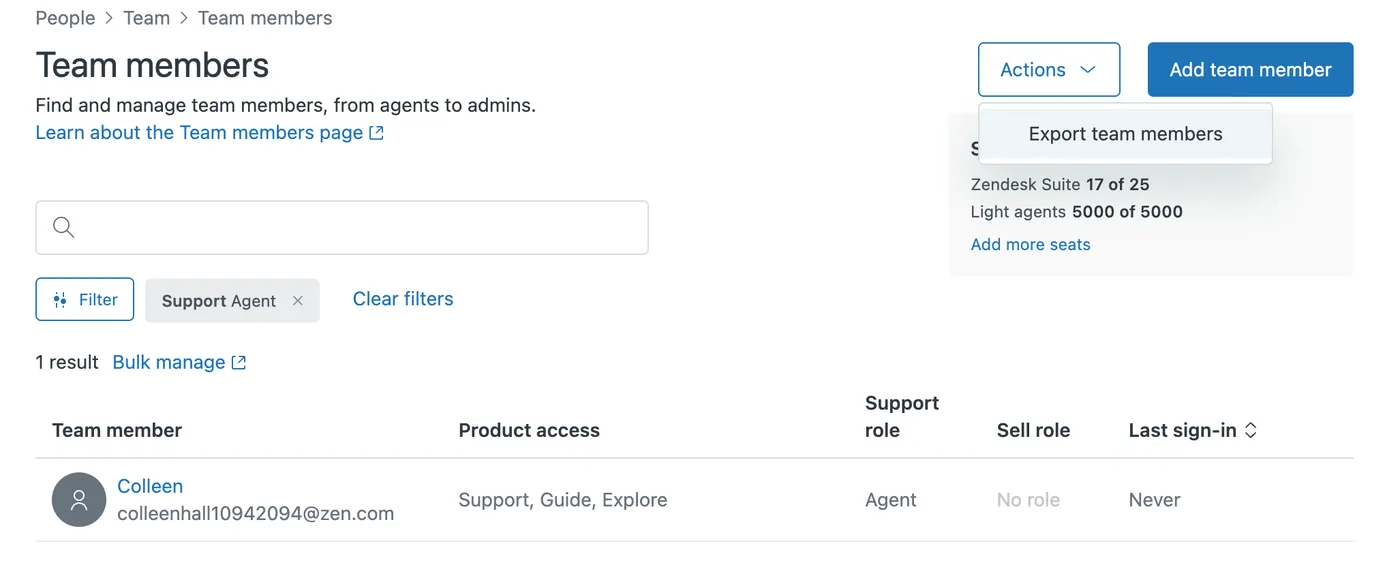
The export lives behind the Actions menu on the Team members page, and the CSV includes a Last sign-in column, which is the field you care about most. In the screenshot above, one agent has never signed in at all.
If you would rather work from the API, the Users endpoint returns a last_login_at field for each user. One catch worth knowing: you cannot filter on last_login_at through Zendesk's search. You have to pull every user and sort them on your own side.
Step 3: build your review sheet
The raw CSV is just a dump. Turn it into a working sheet that doubles as your audit trail. Keep the identifying columns you need and add a few of your own for tracking.
Keep name, email, role, groups, and last sign-in, then add Manager, Inactive?, Manager verified, Action taken, and Date. That last group is what turns a data file into something you can hand an auditor.
Step 4: check with managers before you touch anything
Never deactivate a seat on the data alone. The agent who looks dead might be on parental leave or buried in a special project. Filter your sheet down to the flagged names, send that short list to the right managers, and ask one thing: does this person still need their full Zendesk seat?
Make it a one-word reply. Keep or remove, next to each name. Do not send the whole spreadsheet or a form. You will hear back faster.
Log each answer in your Manager verified column as it comes in. Now you have a record of who made each call, which is the part auditors actually care about.
Step 5: downgrade, do not delete, then count the savings
With approvals in hand, reclaim the seats. In Zendesk you do not delete the person, you change their user type from a staff member to an End user. Their whole ticket history stays intact and the paid seat is freed.
One detail trips people up here: freeing a seat is not the same as lowering your bill. Zendesk keeps charging for the seat count on your subscription until you actually reduce that number, and you can usually only do that at renewal. So downgrade now, then walk your new, lower active count into the renewal conversation. And a related mistake worth repeating: suspending an agent does not free the seat either. Only the downgrade to End user does.
Then do the arithmetic. Multiply the seats you reclaimed by your per-agent cost. Downgrade 15 agents on Suite Professional at $115 a month and you have found $20,700 a year. That is a number worth sending to finance.
Manual versus automated
A manual review works. It is also slow, and on a big team the odds of missing someone or working from stale data go up the longer it drags on. Here is how the two approaches compare.
| Aspect | Manual review (spreadsheet) | Automated review (LicenseTrim) |
|---|---|---|
| Effort | High. Hours of exporting, formatting, and chasing managers. | Low. A few minutes to connect, then it runs on its own. |
| Accuracy | Prone to missed agents and out-of-date CSVs. | Works from live data and the same rules every time. |
| Frequency | Usually quarterly or yearly, because it is a slog. | Continuous, on a weekly or monthly schedule. |
| Documentation | Manual spreadsheet updates that drift. | A timestamped record of every flagged seat. |
| Savings | Real, but delayed until the next review cycle. | Surfaced as soon as a seat goes quiet. |
A manual audit is a fine place to start. For keeping the bill down over the long run, automation is more reliable.
Automating the review so it keeps paying off
A manual audit has a short shelf life. You spend a day cleaning the list, and the day you finish it starts drifting again. A contractor rolls off. A new hire joins. Someone changes teams. The point of automating the review is to stop treating it as a quarterly fire drill and let it run in the background.
From CSV snapshots to a live connection
Exported CSVs are annoying to work with and out of date the moment you download them. A read-only connection to the Zendesk API gives you the current picture instead of last month's. From there you can go past a plain last-login check and look at real contribution: whether someone has commented, solved anything, or had a ticket assigned in a given window.
Set the rules once
The good part of automation is you configure it once. After a read-only OAuth connection, which takes a couple of minutes, you set the inactivity thresholds that fit your team. A full-time queue might get a tight 30-day window while a part-time specialist gets 90. When someone crosses the line, the tool tells you instead of you going to look.
Turn the alert into a decision
An alert is only useful if you can act on it without digging. A good notice gives you the agent's name and role, their last sign-in, their last ticket activity, and the yearly cost of the seat, so the call is obvious. "Jordan Lee, Suite Professional, no activity for 92 days, about $1,380 a year" is a decision you can make in ten seconds.
LicenseTrim does exactly this for Zendesk. It connects with read-only access, runs the first audit for you, and then keeps watching, sending a report when seats go quiet with the cost attached. It does not reach into your account to change anything, so you still make every downgrade yourself in Zendesk, with full control. That turns a manual chore into a steady stream of savings you can act on. If you are weighing your options, it is worth reading up on the wider set of software license audit tools first.
Making the case to leadership
Getting time and budget for an access review is not automatic. Leadership is thinking about growth, not IT housekeeping, so you have to put it in their terms. The approach that works is a one-two: show the money first, then show the risk you are removing.
Lead with the savings
Finance responds to numbers, so start there. Show them what the unused Zendesk seats cost. On Suite Professional at $115 per agent per month, ten agents who have not logged in for 90 days is a clean figure:
10 agents x $115 x 12 months = $13,800 a year.
Now it is not a chore, it is nearly $14,000 back that could go to a hire or a campaign. That reframes the whole conversation, and it scales fast with team size.
Estimated annual savings on Zendesk Suite plans
Roughly what you get back by reclaiming unused seats at each tier. These are Zendesk's list prices; your real per-seat cost depends on your contract, and Enterprise is quoted case by case.
| Plan | Cost per agent/month (annual) | 5 inactive agents | 10 inactive agents | 20 inactive agents |
|---|---|---|---|---|
| Suite Team | $55 | $3,300 | $6,600 | $13,200 |
| Suite Growth | $89 | $5,340 | $10,680 | $21,360 |
| Suite Professional | $115 | $6,900 | $13,800 | $27,600 |
| Suite Enterprise | $169+ | $10,140+ | $20,280+ | $40,560+ |
Even a small cleanup adds up, and for a bigger company reclaiming 20 seats can cover a salary. That is the kind of line that gets a budget approved.
Then connect it to risk
Once you have their attention, bring in security. It is harder to price, but it matters just as much, so frame it as a business risk rather than a technical detail. Fewer live accounts means fewer ways in:
- Fewer doors for an attacker to reach customer data.
- A clean, documented trail for SOC 2 and ISO 27001, which keeps audits from turning expensive.
- Lower odds of the kind of breach that costs you customer trust overnight.
This is a growing priority for a reason. Market.us puts the identity and access management market at $16.8 billion in 2023, growing to $53.1 billion by 2032, an annual rate of 13.7%, and you can read more of those identity and access figures if you want the backup. Pair the hard savings with the risk you remove and you are not asking for resources, you are handing leadership a plan.
Common questions
What about contractors and part-time staff?
This one comes up every time. Part-time agents, seasonal contractors, and the specialist who only jumps on the hard tickets are all valuable, and none of them log in daily. A flat 30-day rule punishes them unfairly. Give those groups their own policy instead, something like a 90 or 120-day window, and write the exception into your access policy. The goal is not to cut every quiet seat, it is to make sure every paid seat has a reason to exist.
How does downgrading actually work?
When a seat is ready to reclaim, you do not delete the person. Deleting wipes their ticket history and leaves holes in your reporting. Instead you change their user type in the Admin Center from a staff member (Agent, Admin, or a custom agent role) to an End user, who cannot be assigned tickets or open the agent workspace. The account and its history stay put, and billing for that seat stops once you bring your subscription seat count down.
Will agents lose their work if we downgrade them?
No, and this is the part that puts everyone at ease. Downgrading someone to End user keeps every past ticket, comment, and contribution exactly where it was. All of it is tied to the user profile, so your historical reports do not change. The only thing they lose is the ability to work new tickets, and if they need agent access again you just switch the user type back.
How should we tell the team?
Do not skip this. Nobody enjoys having access pulled without warning, and it can read as a vote of no confidence. Get ahead of it. Before your first cycle, send a short note to your Zendesk users that explains why you are doing this (cost and security, not surveillance), how it works (the inactivity rules, and that managers sign off on every change), and that it is a routine audit like any other. Telling people their own manager has the final say turns a tense moment into a normal process.
Want to know your number before you start? LicenseTrim connects to your Zendesk in a couple of minutes and shows you exactly how much you are spending on inactive seats. The first scan is free. See what you can reclaim.
Sources and further reading
- Zendesk pricing, seat management, and light agent documentation.
- Verizon 2025 Data Breach Investigations Report, for the credential-abuse figures.
- Market.us identity and access management statistics, via scoop.market.us.
- SOC 2 (AICPA) and ISO 27001 (ISO) access-control requirements.
- Global digital and security trend data from DataReportal.